

Using computer apps with a screen reader
When I open a new app for the first time, or an existing app that has updated overnight, I often feel a mix of excitement and frustration.
As someone who is blind, the promise of what the app can do is always intriguing, but the reality of navigating it with a screen reader can be daunting. Buttons without labels, menus buried in unexpected places, and features that seem designed for sighted users can make those first moments feel overwhelming.
I’ll admit, there are times when I want to give up. The learning curve feels steep, and the frustration builds quickly. But over time, I’ve discovered that the Help function in my assistive technology really does help!
More recently, the ability to get a description of an app’s layout is helping me get a more rounded picture of the app, its design and its key features.
Getting a description of the app layout
With the release of SuperNova and Dolphin ScreenReader Version 24.05, I’ve been able to get a description of the current app window. At times, this has been a real eye-opener - if you'll pardon the pun - as my original perceptions of where items were on the screen were sometimes misplaced. This isn't a significant issue when you use the keyboard to interact with an app, but it is important when you are trying to describe to others how to use an app.
If you are using SuperNova or Dolphin ScreenReader, you can get a description of the current app window by pressing CAPS LOCK + SPACEBAR, Q, A.
Here’s a visual example of the SuperNova Control Panel:
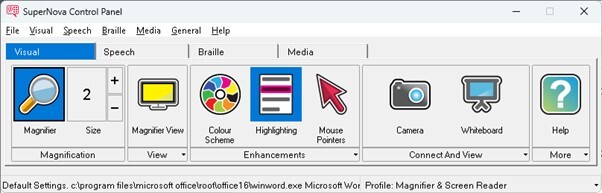
Using the image description function, the SuperNova Control Panel is described in the following way:
The image shows the SuperNova Control Panel interface. It has several tabs at the top: File, Visual, Speech, Braille, Media, General, and Help. The Visual tab is selected, displaying options for: - Magnifier: with a magnifying glass icon and size set to 2. - Magnifier View: with a monitor icon. - Colour Scheme: with a colour wheel icon. - Highlighting: with a highlighted text icon. - Mouse Pointers: with a mouse pointer icon. - Camera: with a camera icon. - Whiteboard: with a whiteboard icon. - Help: with a question mark icon. At the bottom, there is a status bar showing default settings and the profile "Magnifier & Screen Reader."
In this case, you may have already spotted that the "menu bar" is described as "tabs" when it says: "It has several tabs at the top…", but other than that, the description is very informative. This gives me an insight into the icons used on buttons that I previously didn’t know.
In addition, I can ask follow-up questions in SuperNova. For example, "What colour is the mouse pointer icon?" This gives me a much deeper understanding of the interface, one which was previously lost to me , or at least required friends and colleagues to help provide a description.
To recap those steps if you'd like to try it yourself:
- Open your app.
- Press CAPS LOCK + SPACEBAR, Q, A. Speech will say "Describe image of application window" and the SuperNova "Ask AI" window will open.
- Type your question or just press ENTER to use the default prompt. The question is sent to AI, and the answer arrives back in a couple of seconds.
- Continue to ask follow-up questions as required.
Using SuperNova Help material as a training guide
Instead of struggling endlessly, I’ve learned to pause, search for and review the documentation. Especially information that explains how the app works with screen readers, and sections that list useful keyboard commands.
These guides transform my experience. Suddenly, what felt impossible becomes manageable. A shortcut here, a command there, and the app begins to open up to me in ways I couldn’t see before.
It’s not instant mastery. It takes time, patience and sometimes repeated attempts.
Each time I invest in learning, I gain confidence.
The frustration fades, replaced by a sense of accomplishment.
Why taking time matters
- Accessibility isn’t automatic: Even the most well-designed apps require effort to understand.
- Keyboard commands are empowering: They turn what feels like a maze into a clear path.
- Screen reader tips unlock independence: Knowing how the app interacts with my tools makes all the difference.
The bigger lesson
The learning curve isn’t something to fear, it’s something to embrace! Every app I master reminds me that patience pays off. By slowing down, reviewing the help material and practicing the commands, I move from frustration to fluency.
And here’s the truth: learning isn’t about the app. It’s about resilience.
Each curve I climb strengthens my ability to adapt, to persist, and to thrive in a digital world that isn’t always built with me in mind.
Closing thoughts
Each time I face a new app, I remind myself: frustration is temporary, but learning lasts!
With the right tools, the right mindset, and a willingness to take time, accessibility becomes not just possible, it becomes empowering.
As I overcome those challenges, I am also keen to share my knowledge. To this end I regularly contribute to the Courses, Lessons and Help Pages that make up the Dolphin Learning Zone.



Let Us Know What You Thought about this Post.
Write your comment below.